
Hey there Workflowy folks. As of today you can now name your starred searches. This change lets you take your custom searches and give them easy to recognize names. Previously you had to remember what each starred search meant which wasn’t the nicest of experiences.
If you’ve never starred a search before, you can do so by zooming into any section of your Workflowy account, performing a search, and then clicking the star icon in the search bar. This not only saves the search but also the location where the search was performed. Starred searches are displayed in the sidebar under the ‘STARRED‘ section and can be identified by the magnifying glass icon they start with.
An additional benefit of this update is that your named searches also appear in the ‘Jump to‘ menu. So for example, if you star a search and name it ‘Overdue tasks’, you can now also search for that in the ‘Jump to‘ menu to instantly perform the search without taking you hands off the keyboard.
How do I name a search?
Naming a search is done in the left-hand sidebar under the ‘STARRED‘ section.
1. Open the left-hand sidebar
2. Expand the ‘STARRED‘ section if it’s collapsed
3. Move your cursor over the starred search you want to name
4. Click on the pencil icon on the right side of the starred search
5. Type the name of your search
6. Hit ‘ENTER‘ to save the name
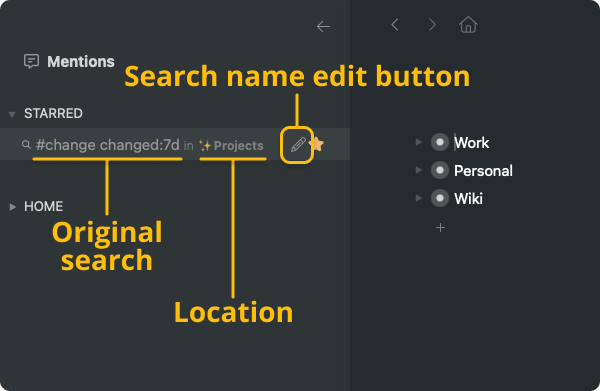
How can I use my named searches?
Named searches are displayed under the ‘STARRED‘ section of the sidebar. You click a named search to perform that search. You can also use the ‘Jump to‘ menu to perform the searches even faster.
1. Hit the keyboard shortcut for the ‘Jump to‘ menu (Windows: CTRL + K, MAC: CMD + K)
2. Type the name of your search
3. Hit ‘ENTER‘ to perform the search

And that’s it! A simple but useful update that makes starred searches nicer to use and more useful. Let us know if you already use starred searches and what you think of this update in the comments below.
Until the next one!

Would be great to use all the search operators also from bullets like tags.
For example clicking on #tag:is:complete will put “#tag:is:complete” into the search box
Can i put these inside an iframe, so that i can build a dashboard to get a quick overview of my searches, using a custom page with several iframes running?
Great feature, sorting favorites would be an excellent addition to this.
Compared to this feature, I actually think it would be better if you could adjust the Star page order.
Thanks for the feedback lucky, we’re working on this.
The pencil icon to change the name isn’t showing up for me yet (on Chrome browser or PC app)
Hey Jessica, that’s very odd. Could you please try a hard refresh and check once more? If the pencil icon is not showing up for starred searches, please contact our support team so they can take a look – help@workflowy.com
Having the same issue with Workflowy Desktop, windows 10.
[…] […]
Thank you! Didn’t realized how much I need it!
Another nice feature! Thanks 🙂
Great!
My: “Recent changes” OR changed:7d
is not necessary anymore 🙂
I don’t use starred search but did learn here about ctrl+K to jump. Especially with the > sign for hierarchy like “notes > private” is super useful!
WOW!
Great feature!
Great addition. Would be nice to be able to manually order on the side bar.
This is pretty cool except my starred list is already pretty crowded and it can’t be categorized, sorted, or otherwise rearranged so I’m not likely to use it much for this.
Now if we could only nest or “Mirror” (( )) that search into a tree. Imagine how powerful that would be!
For instance:
You have a Journal list where you take dated notes chronologically.
You also have a Projects list categorized topically.
When making journal entries, you use a particular project’s tag, like #ProjEx, when referencing it in your journal entries. You may also use a #Task tag to mark action items for various projects.
You can search for #ProjEx #Task in your Journal to find any action items for that project; and that’s certainly cool….
But imagine how incredibly awesome it would be if you could see that search as a “mirrored” bullet under your Projects > #ProjEx > #Tasks list!
Every time you went to look at that project, any new #Task items that have been created for it in the Journal would automatically show up.
This is only one use-case out of many for me and it would be the biggest improvement ever by far. I SO hope something like this is in the works.
Basically like a live search result as a bullet right! I had the same thought!
Plenty of use cases for this..
Maybe we can use {{ search term }} to create these
I LOVE Workflowy. Been using it for years now.
workflowy, you are the best of the best <3
This is a nice refinement and well implemented. Just noting that Ctrl+K is doing double duty in the Windows application. If the cursor is next to a hyperlink, or in it, that key combo brings up the link editor (just like in Microsoft apps, which is great). But if it’s anywhere else it calls up “Jump To”. If you happen to be at a hyperlink, Ctrl+K does not invoke Jump To as expected. Just noting.
Just hit K again, and then the “jump to” comes up! Learning that was life-changing for me, haha.
Alternatively, Ctrl+semicolon always brings up the Jump menu.
I’m wonderling if is it possible to create a link for this saved view.
The article say that is possible:
I would like to be able to have a link in the context of a note, that the search is directly useful
whoa! Never heard of Henrique. Is it the Portuguese version of Henry/Enrique? TIL!
You can create a link to any search by performing the search and then copying the URL. Then paste this url into Workflowy and rename it to something that makes sense. Then just click the link to perform the link.
Did this affect the search feature underneath? It seems far slower or will hang “forever” on searches that normally finish quickly. I had to force quit the app several times. This affects simple searches such as “created:1d” or “created:1h” in Home. Also, rather than showing “searching”, it’ll simply freeze before showing search results, if it ever does.
I don’t think for this update the team made any changes to the underlying search functionality. But if you keep having that issue, please let our support team know so we can take a look because we do make multiple changes at once and we might have done something to cause that. – help@workflowy.com
[…] […]
[…] […]